Navigating the Dashboard
Once you have logged into the Andel Cloud portal, the dashboard is your starting point. It gives you a real-time overview of your scheme, including device status, alarms, and events.
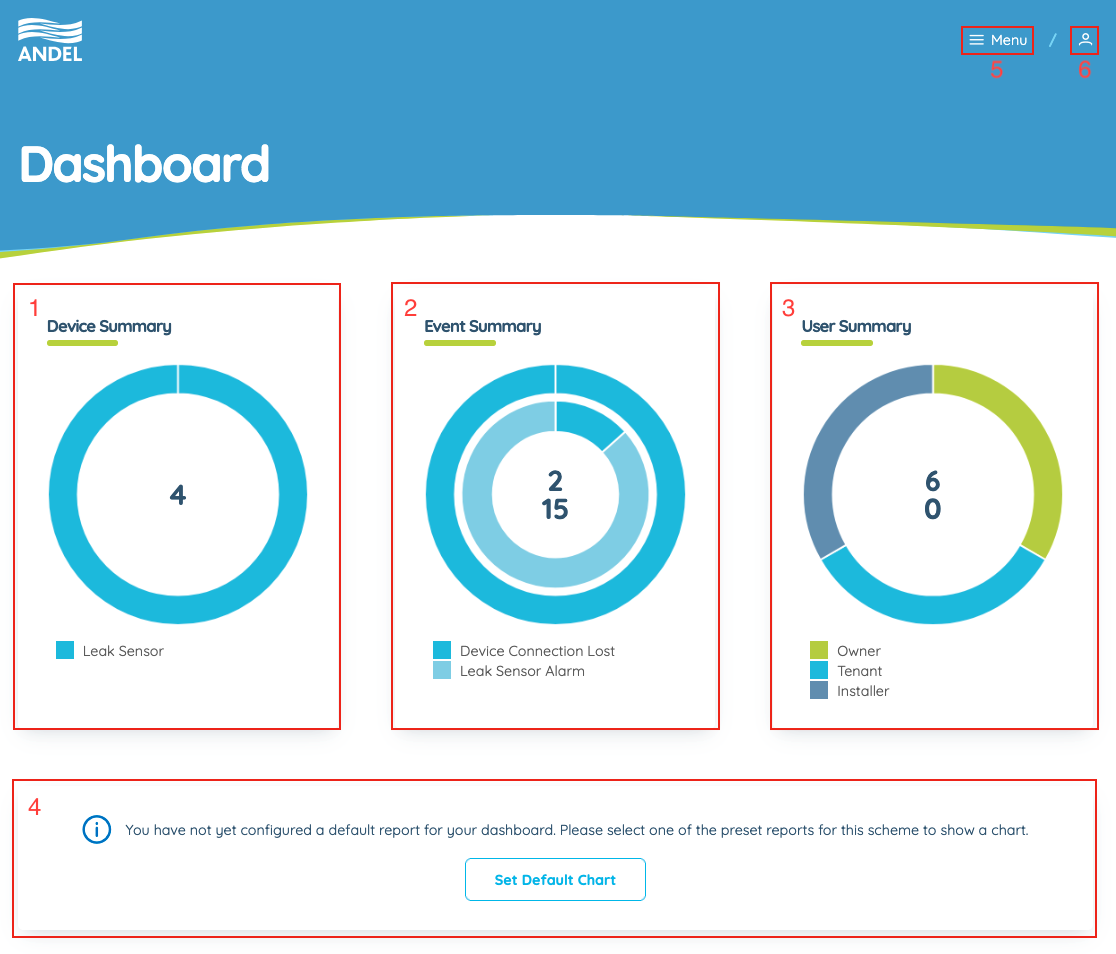
1 - Device Summary
This shows the number of devices that have been set up on your scheme, broken down by type.
2 - Event Summary
This section shows current and recent alerts and events:
- Live events that are still ongoing are shown in the outer ring
- Archive events that have been cleared or resolved in the last 30 days are in the inner ring
3 - User Summary
You can see the number of users in the scheme here:
- Users that have completed their account creation are in the outer ring
- Any users that have not yet finished registering are in the inner ring
Note that account creation must be completed within 7 days of receiving the invite email - users that have missed this deadline will have need their invite re-sending from the User Administration menu.
4 - Custom Chart (Optional)
If a historical report has been saved as the default chart, it will appear here.
This allows you to see key metric from your devices, such as battery levels or Wi-Fi signal strength.
For more information, see Analytics and Reports.
5 - Scheme Menu
The scheme menu has links to all of the other pages on your scheme:
- Dashboard - this page
- Alarms - see Alarms, Events, and Notifications
- Alarm Groups - see Managing Devices
- Events - see Alarms, Events, and Notifications
- Devices - see Managing Devices
- Estate - see Zone and Estate Management
- Analytics - see Analytics and Reports
- Users - see User Administration
6 - User Menu
The user menu allows you to manage your own account and, if you are in multiple schemes, switch scheme.
- Profile - see Account Management
- Switch Scheme - opens the scheme selection menu
- Toggle Theme - toggle between light and dark mode (experimental)
- Logout - securely log out of Andel Cloud